Enroll a New PostgreSQL Server
This guide walks you through the complete procedure to register a new PostgreSQL server in PMP4PG and start collecting its metrics.
Overview
1. Authenticate as ADMIN and generate a registration token
         ↓
2. Prepare the PostgreSQL server (monitoring user)
         ↓
3. Install the PMP4PG Agent RPM
         ↓
4. Configure the agent (token + connection settings)
         ↓
5. Start the agent — registration runs automatically
         ↓
6. Copy credentials back into config and restart
         ↓
7. The server appears in the Global Dashboard
Step 1 — Authenticate and Generate a Registration Token
Registration tokens are single-use credentials that authorize an agent to register itself with the PMP4PG backend. Only an ADMIN user can generate them.
1.1 — Sign in as ADMIN
curl -X POST http://<BACKEND_HOST>:8080/pmp/user/signin \
  -H "Content-Type: application/json" \
  -d '{
    "username": "ADMIN",
    "password": "<admin_password>"
  }'
Copy the token value from the response — you will use it in the next call.
1.2 — Generate a Registration Token
curl -X POST http://<BACKEND_HOST>:8080/pmp/api/admin/registration-tokens/generate \
  -H "Content-Type: application/json" \
  -H "Authorization: Bearer <JWT_TOKEN>" \
  -d '{
    "siteCode": "PAR01",
    "description": "Token for new prod server in Paris",
    "expiresInHours": 5,
    "maxUses": 1
  }'
| Field | Description |
|---|---|
siteCode | Site or datacenter identifier (free text, e.g. PAR01, LON02) |
description | Human-readable description for audit purposes |
expiresInHours | Token validity period in hours |
maxUses | Number of times the token can be used — always 1 for security |
Copy the registration token immediately — it is displayed only once. Each token is valid for a single registration and expires after the configured number of hours.
Step 2 — Prepare the PostgreSQL Server
On the PostgreSQL server you want to monitor, create a dedicated monitoring user.
Option A — Password Authentication (Recommended)
-- 1. Create the monitoring user
CREATE USER pmp4pg WITH LOGIN PASSWORD 'changeit';

-- 2. pg_monitor role: grants access to pg_stat_activity, pg_stat_statements,
--    pg_stat_replication, pg_stat_wal, pg_stat_bgwriter, etc.
--    Also includes pg_read_all_settings and pg_read_all_stats.
GRANT pg_monitor TO pmp4pg;

-- 3. pg_stat_statements access (if the extension is installed)
--    Required to query the view from any database.
GRANT SELECT ON pg_stat_statements TO pmp4pg;

\q
Then add the following line to pg_hba.conf:
# PMP4PG monitoring user — TCP connection with password
host    all    pmp4pg    127.0.0.1/32    scram-sha-256
Option B — PEER Authentication (Local Socket, No Password)
sudo -u postgres psql

CREATE USER pmp4pg WITH LOGIN;
GRANT pg_monitor TO pmp4pg;
GRANT SELECT ON pg_stat_statements TO pmp4pg;
GRANT CONNECT ON DATABASE postgres TO pmp4pg;

\q
Then add the following line to pg_hba.conf before existing local rules:
# PMP4PG monitoring user — PEER authentication (no password)
local    all    pmp4pg    peer
Reload PostgreSQL after editing pg_hba.conf:
systemctl reload postgresql
Enable pg_stat_statements (if not already active)
# Add to postgresql.conf
echo "shared_preload_libraries = 'pg_stat_statements'" >> /var/lib/pgsql/16/data/postgresql.conf
echo "pg_stat_statements.track = all"                  >> /var/lib/pgsql/16/data/postgresql.conf

# Restart PostgreSQL
systemctl restart postgresql

# Create the extension
sudo -u postgres psql -c "CREATE EXTENSION IF NOT EXISTS pg_stat_statements;"
Step 3 — Install the PMP4PG Agent
Transfer the RPM package to the target server and install it:
dnf install pmp4pg-agent-1.0.0-1.x86_64.rpm
The installer creates the following structure:
| Path | Description |
|---|---|
/usr/bin/pmp4pg-agent | Agent binary |
/etc/pmp4pg/agent.conf | Configuration file |
/var/log/pmp4pg/ | Log directory |
pmp4pg-agent.service | systemd service unit (not started yet) |
Step 4 — Configure the Agent
Edit the configuration file:
vi /etc/pmp4pg/agent.conf
Fill in the following sections:
# === AGENT ===
agent:
  id: ""                                   # Leave empty — assigned after registration
  api_key: ""                              # Leave empty — assigned after registration
  registration_token: "PASTE_TOKEN_HERE"  # Token generated in Step 1

# === POSTGRESQL CONNECTION ===
postgresql:
  host: "localhost"
  port: 5432
  user: "pmp4pg"
  password: "your_secure_password"         # Leave empty if using PEER auth
  database: "postgres"
  ssl_mode: "disable"

# === SERVER IDENTITY ===
server:
  id: ""                                   # Leave empty — assigned after registration
  environment: "RUN"                       # RUN, DR or BUILD
  tag: ""                                  # Optional free-text tag

# === BACKEND ===
backend:
  url: "http://<BACKEND_HOST>:8080/pmp"    # Use https:// if TLS is enabled on the backend
  timeout_seconds: 30
  retry_attempts: 3
  retry_delay: 5
  compression: "gzip"                      # "gzip" or ""
  tls:
    enabled: false                         # set to true when backend uses HTTPS
    skip_verify: false
    ca_cert: ""
See Agent Configuration → for the full reference of every parameter, including the collectors, buffer and logging sections.
agent.id, api_key and server.id are assigned automatically during registration. Leave them empty at this stage.
Step 5 — Run the Registration
The agent detects that agent.id is empty and automatically enters registration mode on first start:
systemctl start pmp4pg-agent
Follow the logs to monitor the registration process:
tail -f /var/log/pmp4pg/agent.log
On success, the agent prints the assigned credentials directly in the log:
======================================================================
COPY THE FOLLOWING TO YOUR agent.conf:
----------------------------------------------------------------------
agent:
  id: "52103fa1-4fa6-445c-a86b-3a7fdb216348"
  api_key: "api_0RYqu5Azaa4-KgrcH86U4FPqojuFKpdYhbReNwYjlvi27wH3h2wdedxd-AG8-UrF"
  registration_token: ""  # Clear the token after registration

server:
  id: "03153ee0-e28e-4720-8c9c-74470fbefd53"
  environment: "PROD"     # Keep your value
  tag: ""                 # Keep your value
----------------------------------------------------------------------
NEXT STEPS:
----------------------------------------------------------------------
1. Edit your agent.conf file
2. Copy the above credentials
3. Clear the registration_token
4. Save the file
5. Restart the agent
======================================================================
Note down all three values: agent.id, api_key and server.id. All three are required in the next step.
Step 6 — Update the Configuration
Edit the configuration file and paste the credentials printed in the log:
vi /etc/pmp4pg/agent.conf
agent:
  id: "52103fa1-4fa6-445c-a86b-3a7fdb216348"       # ← paste here
  api_key: "api_0RYqu5Azaa4-KgrcH86..."             # ← paste here
  registration_token: ""                             # ← clear the token (mandatory)

server:
  id: "03153ee0-e28e-4720-8c9c-74470fbefd53"        # ← paste here
  environment: "RUN"
  tag: ""
The registration_token must be cleared after registration. Leaving it set will cause the agent to attempt re-registration on every restart.
Step 7 — Enable and Restart the Agent
# Enable the service to start automatically on boot
systemctl enable pmp4pg-agent

# Restart to apply the updated configuration
systemctl restart pmp4pg-agent

# Verify the service is running
systemctl status pmp4pg-agent
Confirm the agent is sending metrics successfully:
tail -f /var/log/pmp4pg/agent.log
Expected output:
level=info msg="Batch sent successfully" component=os_metrics_sender status_code=201
level=info msg="Batch sent successfully" component=pg_stat_database_sender status_code=201
level=info msg="Heartbeat sent successfully" component=heartbeat_sender status_code=200
Step 8 — Verify in the Dashboard
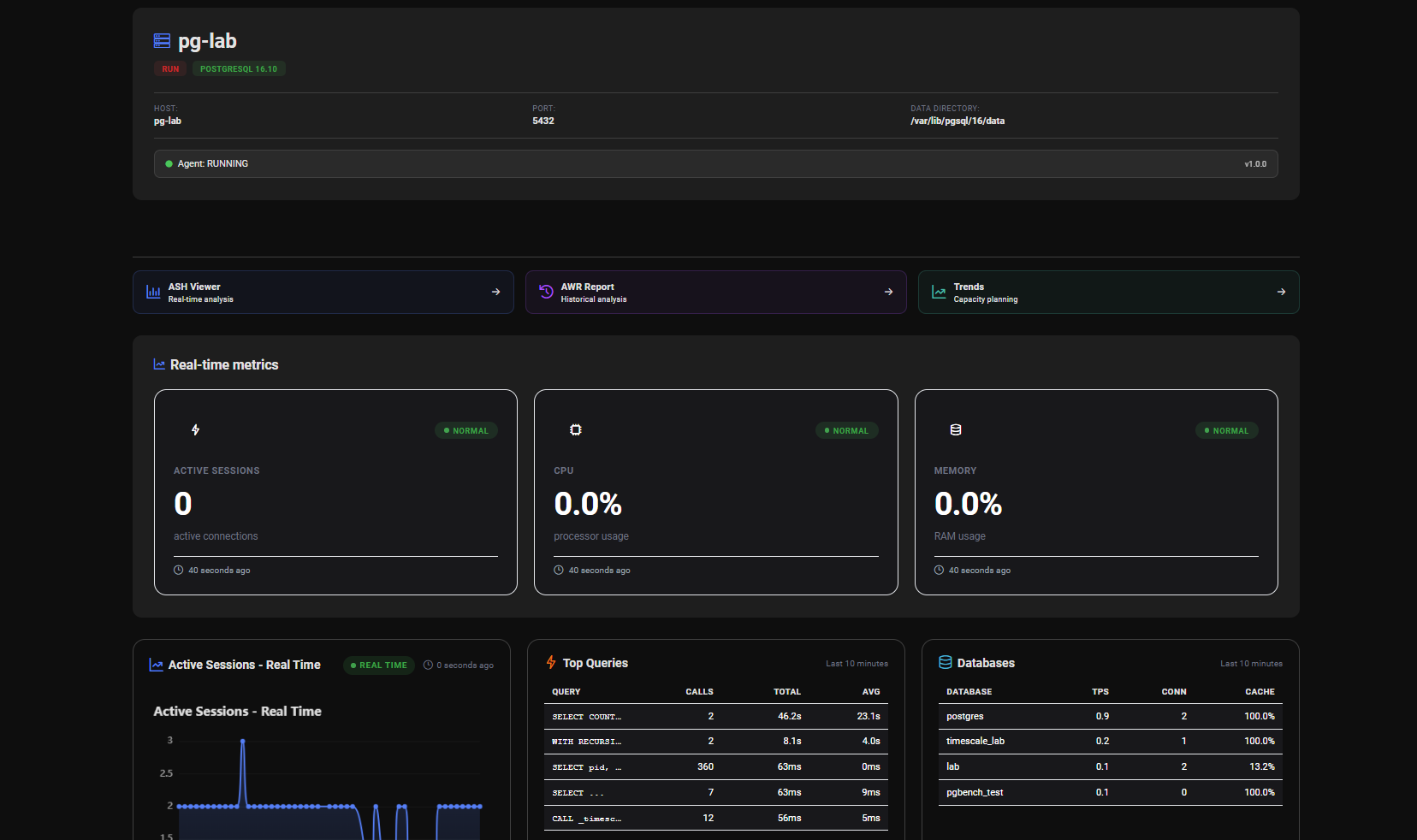
Within 30 seconds, the new server appears in the PMP4PG Global Dashboard with status ACTIVE.
Troubleshooting
401 Unauthorized on some endpoints
Check that the api_key in agent.conf matches exactly what was returned during registration. Also verify that the registration_token has been cleared.
Server already exists error
This occurs when registering a PostgreSQL cluster that shares its pg_system_identifier with an already-registered server (e.g. a VM clone or physical restore). This is handled automatically — the backend distinguishes servers by the combination of pg_system_identifier and hostname, so cloned servers register as separate entries.
Connection refused to backend
Verify the backend.url in agent.conf and confirm network connectivity from the agent host:
curl -v http://<BACKEND_HOST>:8080/pmp/actuator/health
PostgreSQL connection error
Verify the pmp4pg user exists and pg_hba.conf is correctly configured, then reload PostgreSQL:
systemctl reload postgresql

# Test the connection manually
sudo -u pmp4pg psql -c "SELECT 1;"