Servers Grid
The Servers Grid is the central element of the Global Dashboard. It lists all monitored PostgreSQL servers with their current status and key information, giving you an at-a-glance view of your entire fleet.

Grid Columns
| Column | Values | Description |
|---|---|---|
| Server | e.g. pg-lab:5432 | Server hostname and PostgreSQL port as registered in the platform |
| Environment | RUN / BUILD | RUN for production, BUILD for development or staging |
| Version | e.g. PostgreSQL 16.10 | PostgreSQL version detected by the agent |
| Agent | RUNNING / DOWN / ... | Current status of the PMP4PG agent on this server |
| Status | ENABLED / DISABLED | Whether monitoring is enabled or disabled for this server |
| Actions | — | Context menu — View Detail, Enable, Disable, Delete |
Server Status
Server Status (Status column)
| Status | Meaning |
|---|---|
| ENABLED | Server is actively monitored |
| DISABLED | Monitoring manually disabled by an administrator |
| MAINTENANCE | Server placed in maintenance mode — alerts suppressed |
Agent Status (Agent column)
| Status | Meaning |
|---|---|
| RUNNING | Agent is running and sending data normally |
| DOWN | Agent is unreachable — no heartbeat received |
| DEGRADED | Agent is running but some collectors are not working properly |
| ERROR | Agent reported a critical error |
| UNKNOWN | Agent status cannot be determined |
Filtering and Sorting
Filter by Status
Use the Status dropdown to filter the servers by status.
Filter by Environment
Use the Environment dropdown to show only RUN or BUILD servers.
Search
Type in the search box to filter servers by hostname.
Sorting
Click any column header to sort the grid by that column. Click again to reverse the sort order.
Navigating to a Server
Click anywhere on a server row (except the Actions menu) to open the Server Detail page for that server.
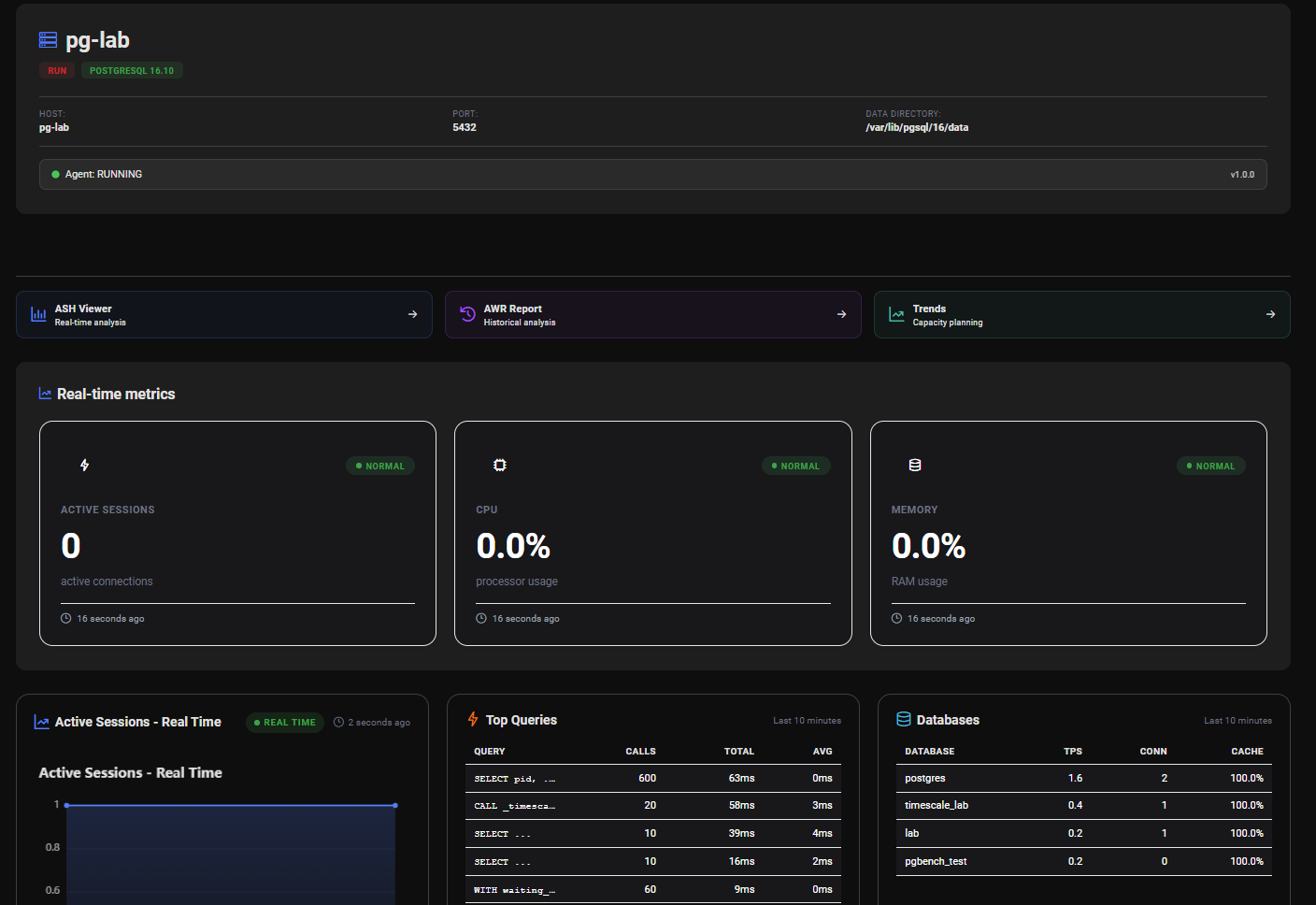
Actions Menu
Click the ⋮ icon in the Actions column to access:
- View Details — Open the Server Detail page
- Disable / Enable — Toggle monitoring state
- Delete — Permanently remove the server
See Manage Servers → for details on each action.